
About your device
AXIS Camera Station S9101 MK II Desktop Terminal is an easy-to-install desktop terminal for high-definition surveillance where space is limited. The terminal is preloaded with AXIS Camera Station client and all necessary software and is preconfigured to minimize installation time. With its slim form factor, AXIS Camera Station S9101 MK II complements Axis rack servers to create a high performing surveillance workstation. The terminal has validated and optimized hardware components and supports two monitors one of which can be 4K resolution.
Get started
The standard workflow to configure an AXIS Camera Station desktop terminal is:
Configure Windows®. We recommend to:
Update Windows® to the latest version. See Update Windows®
Create a standard user account. See Create a user account
Update AXIS Camera Station to the latest version.
If your system is online: open the AXIS Recorder Toolbox app and click Update AXIS Camera Station.
If your system is offline: go to axis.com and download the latest version.
Install your device
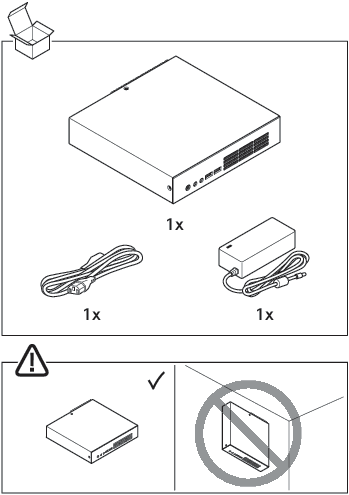
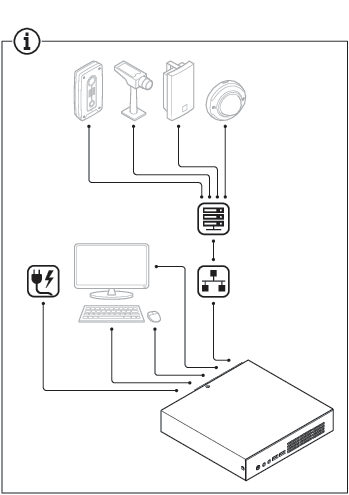
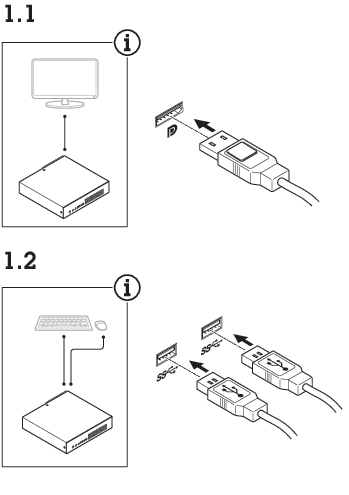
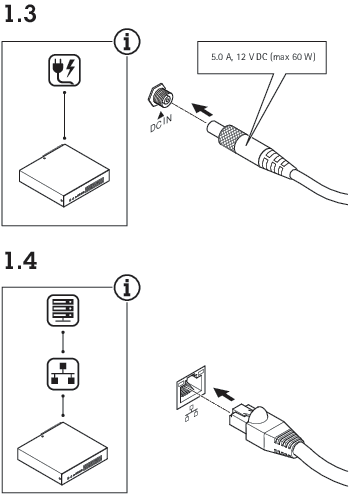
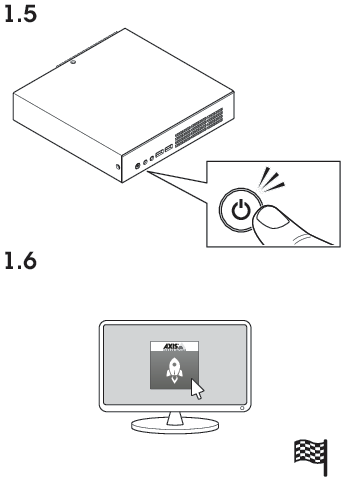
Configure your device
This section describes how to configure the AXIS Camera Station client and server. Some of the instructions may not be relevant for your device.
First-time configuration
After you have configured Windows®, AXIS Recorder Toolbox is opened automatically and you are guided through the first-time configuration wizard. In this wizard, you can configure several basic and necessary settings before you manage your device in AXIS Recorder Toolbox.
Change the computer name if you want and click Next.
Under Date and time, configure the following settings and click Next.
Select a time zone.
To set up an NTP server, select NTP server and enter the NTP server address.
To set manually, select Manual and select a date and time.
Under Network settings, configure the following settings and click Next.
Use automatic IP settings (DHCP) and Use automatic DNS settings are turned on by default.
If your device is connected to a network with a DHCP server, the assigned IP address, subnet mask, gateway, and preferred DNS are automatically displayed.
If your device is not connected to a network or there is no DHCP server available, enter the IP address, subnet mask, gateway, and preferred DNS manually depending on the network requirements.
Under Power settings,
Never put the computer to sleep and Never turn off the display are selected by default.
We recommend that you keep both options selected to make the live view and recordings available all the time. You can always go to Start > Settings > System > Power & sleep to change the settings.
Click Finish. If you have changed the computer name, AXIS Recorder Toolbox will prompt you to restart the device.
Connect to a server
The AXIS Camera Station S9101 Mk II Desktop Terminal client lets you connect to a single server or multiple servers in different ways:
- Last used servers
- Connect to the servers used in the previous session.
- This computer
- Connect to the server installed on the same computer as the client.
- Remote server
- See Connect to a remote server.
- The first time you connect to a server, the client checks the server certificate ID. To make sure you're connecting to the correct server, compare the certificate ID with the one displayed in AXIS Camera Station S9101 Mk II Desktop Terminal Service Control.
| Server list | To connect to servers from a server list, select a one from the Server list drop-down menu. Click  to create or edit the server lists. to create or edit the server lists. |
| Import server list | To import a server list file exported from AXIS Camera Station, click Import server list and browse to an .msl file. |
| Delete saved passwords | To delete saved usernames and passwords for all connected servers, click Delete saved passwords. |
| Change client proxy settings | If you can't connect to a server, you might need to update your client proxy settings. Click Change client proxy settings. |
Connect to a remote server
Select Remote server.
Select a server from the Remote server drop-down list or enter the IP or DNS address. If the server isn’t listed, click
 to refresh the list of all the available remote servers. If the server is configured to accept clients on a different port than the default port number 55754, enter the IP address followed by the port number, for example, 192.168.0.5:46001.
Do one of the following:
Select Log in as current user to log in as the current Windows® user.
Clear Log in as current user and click Log in. Select Other user and provide another username and password to log in with different credentials.
Sign in to AXIS Secure Remote Access
To improve security and functionality, we’re upgrading Axis Secure Remote Access (v1) to Axis Secure Remote Access v2. We’re discontinuing the current version on December 1st, 2025, and we strongly recommend that you upgrade to Axis Secure Remote Access v2 before that.
What does this mean for your AXIS Camera Station S9101 Mk II Desktop Terminal system?
- After December 1st, 2025, you will no longer be able to remotely access your system using Axis Secure Remote Access (v1).
- To use Axis Secure Remote Access v2, you must upgrade to AXIS Camera Station Pro version 6.8. This upgrade is currently free for all AXIS Camera Station 5 users until March 1st, 2026.
- When trying to connect to a server using Axis Secure Remote Access, the server can’t upgrade the client automatically.
- If the proxy server is between the network device and the AXIS Camera Station S9101 Mk II Desktop Terminal server, you must configure the proxy settings in Windows on the AXIS Camera Station S9101 Mk II Desktop Terminal server to access the server using AXIS Secure Remote Access.
Click the Sign in to AXIS Secure Remote Access link.
Enter your My Axis account credentials.
Click Sign in.
Click Grant.
Configure AXIS Camera Station Pro
Before you start:
Configure your network depending on your installation. See Network configuration.
Configure your server ports if needed. See Server port configuration.
Consider security issues. See Security considerations.
After necessary configurations, you can start to work with AXIS Camera Station Pro:
Start the video management system
Double-click the AXIS Camera Station Pro client icon to start the client. When you start the client for the first time, it attempts to log in to the AXIS Camera Station Pro server installed on the same computer as the client.
You can connect to multiple AXIS Camera Station Pro servers in different ways.
Add devices
The first time you start AXIS Camera Station S9101 Mk II Desktop Terminal, the Add devices page opens and searches the network for devices to add.
Select the devices you want to add from the list. If you can’t find a device, click Manual search or type to filter.
Click Add.
Click Close to skip configuration and continue later. To continue with the configuration now:
Choose Quick configuration or Site Designer configuration. See for more information.
Select Add image overlay for date, time, and text to add overlays to any Axis cameras that don’t already have one.
Click Next.
Select your Recording method preference.
Click Next.
Choose your Retention time and Recording storage, and click Finish to apply the configuration.
Configure recording method
Go to Configuration > Recording and events > Recording method.
Select a camera.
Turn on Motion detection, or Continuous, or both.
Click Apply.
View live video
Open a Live view tab.
Select a camera to view its live video.
View recordings
Open a Recordings tab.
Select the camera you want to view recordings from.
Add bookmarks
Go to the recording.
In the timeline, zoom in and out and move the timeline to put the marker at your desired position.
Click
 .
.Enter the bookmark name and description. Use keywords to make the bookmark easy to find.
Select Prevent recording deletion to lock the recording.
- Note
To unlock the recording, clear Prevent recording deletion or delete the bookmark.
Click OK to save the bookmark.
Export recordings
Open a Recordings tab.
Select the camera you want to export recordings from.
Click
 to display the selection markers.
Drag the markers to include the recordings that you want to export.
Click
 to open the Export tab.
Click Export...
Play and verify recordings in AXIS File Player
Go to the folder with the exported recordings.
Double-click AXIS File Player.
Click
 to show the recording’s notes.
To verify the digital signature:
Go to Tools > Verify digital signature.
Select Validate with password and enter your password.
Click Verify to see the verification results.
- Note
- A digital signature is different from signed video. Signed video lets you trace a recording back to the camera it came from, so you can verify it wasn't tampered with. See Signed video and the camera’s user manual for more information.
- If stored files don’t have any connection with an AXIS Camera Station database (non-indexed files), you need to convert them to make them playable in AXIS File Player. Contact Axis Technical support for help converting your files.
Network configuration
Configure proxy or firewall settings before using AXIS Camera Station S9101 Mk II Desktop Terminal if the client, server, and connected network devices are on different networks.
Client proxy settings
If a proxy server is between the client and the server, configure the proxy settings in Windows on the client computer. Contact Axis support for more information.
Server proxy settings
If the proxy server is between the network device and the server, you must configure the proxy settings in Windows on the server. Contact Axis support for more information.
NAT and Firewall
When a NAT or firewall separates the client and the server, configure it to ensure that the HTTP port, TCP port, and streaming port specified in AXIS Camera Station S9101 Mk II Desktop Terminal Service Control can pass through. Contact your network administrator for help.
Server port configuration
The AXIS Camera Station S9101 Mk II Desktop Terminal server uses ports 55752 (HTTP), 55754 (TCP), 55756 (mobile communication), and 55757 (mobile streaming) for communication between the server and the client. You can change the ports in AXIS Camera Station Service Control if required.
Security considerations
To prevent unauthorized access to cameras and recordings:
Use strong passwords for all network devices (cameras, video encoders, and auxiliary devices).
Install the AXIS Camera Station S9101 Mk II Desktop Terminal server, cameras, video encoders, and auxiliary devices on a secure network, separate from the office network. You can install the AXIS Camera Station S9101 Mk II Desktop Terminal client on a computer on another network, for example, a network with internet access.
Make sure all users have strong passwords.
Manage local Windows® user accounts
Create a user account
To help keep your personal data and information more secure, we recommend that you add a password for each local account.
Once you create a password for a local account, don't forget it. There’s no way to recover a lost password for local accounts.
Go to Settings > Accounts > Other users > Add other user and click Add account.
Click I don’t have this person’s sign-in information.
Click Add a user without a Microsoft account.
Enter a user name, password and password hint.
Click Next and follow the instructions.
Create an administrator account
Go to Settings > Accounts > Other people.
Go to the account you want to change and click Change account type.
Go to Account type and select Administrator.
Click OK.
Restart your device and sign in with the new administrator account.
Create a local user group
Go to Computer Management.
Go to Local Users and Groups > Group.
Right-click Group and select New Group.
Enter a group name and a description.
Add group members:
Click Add.
Click Advanced.
Find the user account(s) you want to add to the group and click OK.
Click OK again.
Click Create.
Delete a user account
When you delete an account you remove the user account from the login screen. You also remove all files, settings and program data stored on the user account.
Go to Settings > Accounts > Other people.
Go to the account you want to remove and click Remove.
Change a user account's password
Log in with an administrator account.
Go to User Accounts > User Accounts > Manage another account in sequence.
You’ll see a list with all user accounts on the device.
Select the user account whose password you would like to change.
Click Change the password.
Enter the new password and click Change password.
Create a password reset disk for a user account
We recommend to create a password reset disk on a USB flash drive. With this, you can reset the password. Without a password reset disk, you can’t reset the password.
If you’re using Windows® 10, or later, you can add security questions to your local account in case you forget your password, so you don't need to create a password reset disk. To do this, got to Start and click Settings > Sign-in options > Update your security questions.
Sign in to your device with a local user account. You can’t create a password reset disk for a connected account.
Plug an empty USB flash drive into your device.
From the Windows® search field, go to Create a password reset disk.
In the Forgotten Password setup assistant, click Next.
Select your USB flash drive and click Next.
Type your current password and click Next.
Follow the onscreen instructions.
Remove the USB flash drive and keep it in a safe placet. You don't have to create a new disk when you change your password even if you change it several times.
Manage AXIS Camera Station Pro user accounts
User permissions
Go to Configuration > Security > User permissions to see the users and groups in AXIS Camera Station S9101 Mk II Desktop Terminal.
Administrators of the computer that runs the AXIS Camera Station S9101 Mk II Desktop Terminal server are automatically granted administrator privileges in AXIS Camera Station S9101 Mk II Desktop Terminal. You can’t change or remove the Administrators group's privileges.
Before you can add a user or group, make sure they’re registered on the local computer or have a Windows® Active Directory user account. To add users or groups, see Add users or groups.
When a user belongs to a group, they receivet the highest role permission assigned to them individually or to the group. For example, a user with access to camera X who also belongs to a group with access to cameras Y and Z has access to all three cameras.
| Indicates the entry is a single user. | |
| Indicates the entry is a group. | |
Name | Username as it appears in the local computer or Active Directory. |
Domain | The domain that the user or group belongs to. |
Role | The access role assigned to the user or group. Possible values: Administrator, Operator, and Viewer. |
Details | Detailed user information as it appears on the local computer or in Active Directory. |
Server | The server that the user or group belongs to. |
Add users or groups
Microsoft Windows® and Active Directory users and groups can access AXIS Camera Station S9101 Mk II Desktop Terminal. To add a user to AXIS Camera Station S9101 Mk II Desktop Terminal, you must add users or a group to Windows®.
To add a user in Windows® 10 and 11:
Press the Windows key + X and select Computer Management.
In the Computer Management window, navigate to Local Users and Groups > Users.
Right-click Users and select New User.
In the popup dialog, enter the new user’s details and clear User must change password at next login.
Click Create.
If you use an Active Directory domain, consult your network administrator.
Add users or groups
Go to Configuration > Security > User permissions.
Click Add. The available users and groups appear in the list.
Under Scope, select where to search for users and groups.
Under Show, select to show users or groups. The search results may not appear if there are too many users or groups. Use the filter to narrow the results.
Select the users or groups and click Add.
| Scope | |
|---|---|
Server | Select to search for users or groups on the local computer. |
Domain | Select to search for Active Directory users or groups. |
Selected server | When connected to multiple AXIS Camera Station S9101 Mk II Desktop Terminal servers, select a server to search for users or groups on that server. |
Configure a user or group
Select a user or group in the list.
Under Role, select Administrator, Operator, or Viewer.
If you selected Operator or Viewer, you can configure the user or group privileges. See User or group privileges.
Click Save.
Remove a user or group
Select the user or group.
Click Remove.
In the pop-up dialog, click OK to remove the user or group.
User or group privileges
There are three roles you can assign to a user or group. For how to define the role for a user or group, see Add users or groups.
- Administrator
- Full access to the entire system, including access to live and recorded video of all cameras, all I/O ports, and views. This role is required to access system configuration.
- Operator
- Select cameras, views, and I/O ports to get access to live and recorded video. An operator has full access to all functionality of AXIS Camera Station S9101 Mk II Desktop Terminal except system configuration.
- Viewer
- Access to live video of selected cameras, I/O ports, and views. A viewer doesn’t have access to recorded video or system configuration.
Cameras
The following access privileges are available for users or groups with the Operator or Viewer role.
Access | Allow access to the camera and all camera features. |
Video | Allow access to live video from the camera. |
Audio listen | Allow access to listen from the camera. |
Audio speak | Allow access to speak to the camera. |
Manual Recording | Allow starting and stopping recordings manually. |
Mechanical PTZ | Allow access to mechanical PTZ controls. Available only for cameras with mechanical PTZ. |
PTZ priority | Set the PTZ priority. A lower number means a higher priority. No assigned priority is set to |
Views
The following access privileges are available for users or groups with the Operator or Viewer role. You can select multiple views and set the access privileges.
Access | Allow access to the views in AXIS Camera Station S9101 Mk II Desktop Terminal. |
Edit | Allows editing of views in AXIS Camera Station S9101 Mk II Desktop Terminal. |
I/O
The following access privileges are available for users or groups with the Operator or Viewer role.
Access | Allow full access to the I/O port. |
Read | Allows viewing the state of the I/O port without changing it. |
Write | Allows changing the state of the I/O port. |
System
You can’t configure grayed-out access privileges in the list. A check mark means the user or group has this privilege by default.
The following access privileges are available for users or groups with the Operator role. Take snapshots is also available for the Viewer role.
Take snapshots | Allows taking snapshots in live view and recording mode. |
Export recordings | Allow exporting recordings. |
Generate incident report | Allow generating incident reports. |
Prevent access to recordings older than | Prevent access to recordings older than the specified number of minutes. Users can’t find these recordings when they search. |
Access alarms, tasks, and logs | Get alarm notifications and allow access to the Alarms and tasks bar and Logs tab. |
Access data search | Allow searching for data to track what happened at the time of an event. |
Add categories to events | Allow adding categories to events in the Recordings tab. |
Remove categories from event | Allow removing categories from events in the Recordings tab. |
Access control
The following access privileges are available for users or groups with the Operator role. Access Management is also available for the Viewer role.
Access control configuration | Allow configuration of doors and zones, identification profiles, card formats, and PIN, encrypted communication, and multi-server. |
Access management | Allow access management and access to the Active Directory settings. |
The following access privileges are available for users or groups with the Viewer role.
System health monitoring
The following access privileges are available for users or groups with the Operator role. Access to system health monitoring is also available for the Viewer role.
Configuration of system health monitoring | Allows configuration of system health monitoring. |
Access to system health monitoring | Allows access to system health monitoring. |
Manage your device
By default, your Windows® system goes to sleep and the screen turns off after a certain time. To make the live view and recordings available all the time, go to Start > Settings > System > Power & sleep to change the settings.
Update Windows®
Windows® periodically checks for updates. When an update is available, your device automatically downloads the update but you've to install it manually.
Recording will be interrupted during a scheduled system restart.
To manually check for updates:
Go to Settings > Windows Update.
Click Check for updates.
Configure Windows® update settings
It is possible to change how and when Windows® do its updates to suit your needs.
All ongoing recordings stop during a scheduled system restart.
Open the Run app.
Go to Windows System > Run, or
Type
gpedit.mscand click OK. The Local Group Policy Editor opens.Go to Computer Configuration > Administrative Templates > Windows Components > Windows Update.
Configure the settings as required, see example.
Example
To automatically download and install updates without any user interaction and have the device restart, if necessary, at out of office hours, use the following configuration:
Open Always automatically restart at the scheduled time and select:
Enabled
The restart timer will give users this much time to save their work (minutes): 15.
Click OK.
Open Configure Automatic Updates and select:
Enabled
Configure Automatic updates: Auto download and schedule the install
Schedule Install day: Every Sunday
Schedule Install time: 00:00
Click OK.
Open Allow Automatic Updates immediate installation and select:
Enabled
Click OK.
Troubleshooting
Reset your device
You can use the reset button to reset your device to factory default. It will take more than one hour to reset your device.
Power off your device.
Press and hold the reset button for 5 seconds. Windows RE will be started.
Select Troubleshoot.
Select Reset your PC.
Select Keep my files or Remove everything. If you select Keep my files, you need to provide the administrator credentials.
Follow the instructions on the screen.
The device reboots and starts the procedure to restore Windows to factory default.
Perform a system recovery
External recovery
If the device has had a complete system failure, you must use a recovery image to recreate the Windows® system. To download the AXIS Recovery Kit, contact AXIS Technical Support and supply the serial number of your device.
Download the AXIS Recovery Kit and AXIS ISO to USB Tool.
Insert a USB drive into your computer.
Use a USB drive with a minimum of 16 GB to 32 GB.
The USB drive will be formatted, and all existing data will be erased.
Run the AXIS ISO to USB Tool and follow the onscreen instructions.
Writing data to the USB drive takes approximately 10 to 15 min. Don’t remove the USB drive until the process is complete.
After the ISO to USB tool is complete, take the USB drive and plug it into your device.
Start your device and before the AXIS splash screen appears press F12. We recommend that you tap the F12 key repeatedly as the device boots fast.
Navigate to your USB drive and press Enter. The system boots into the AXIS Recovery Kit.
For example it should say UEFI: Sandisk.
Click Reinstall Operating System.
The recovery takes roughly 10 to 15 min to complete. You find detailed instructions in the download for the recovery kit.
Troubleshoot AXIS Camera Station Pro
For information about how to troubleshoot AXIS Camera Station Pro, go to the AXIS Camera Station Pro user manual.
Product overview
Front and rear sides
- Power connector
- Reset button
- DisplayPort™ 1.2
- Ethernet (RJ45) 1 GbE
- USB 3.1
- Power button
- HDD LED
- Audio line in
- Audio line out
- USB 3.1
Specifications
| LED indicator | Color | Description |
| Power | Steady white | Power on |
| Hard drive | White blinking | Hard drive activity |
Need more help?
Useful links
Contact support
If you need more help, go to axis.com/support.