
ExCam XF P1377
Get started
Find the device on the network
To find Axis devices on the network and assign them IP addresses in Windows®, use AXIS IP Utility or AXIS Device Manager. Both applications are free and can be downloaded from axis.com/support.
For more information about how to find and assign IP addresses, go to How to assign an IP address and access your device.
Browser support
You can use the device with the following browsers:
ChromeTM | EdgeTM | Firefox® | Safari® | |
Windows® | ✓ | ✓ | * | * |
macOS® | ✓ | ✓ | * | * |
Linux® | ✓ | ✓ | * | * |
Other operating systems | * | * | * | * |
✓: Recommended
*: Supported with limitations
Open the device's web interface
Open a browser and type the IP address or host name of the Axis device.
If you don’t know the IP address, use AXIS IP Utility or AXIS Device Manager to find the device on the network.
Type the username and password. If you access the device for the first time, you must create an administrator account. See Create an administrator account.
For descriptions of all features and settings in the web interface of devices with AXIS OS, see AXIS OS web interface help.
Create an administrator account
The first time you log in to your device, you must create an administrator account.
Enter an account.
Enter a password. See Secure passwords.
Re-enter the password.
Accept the license agreement.
Click Add account.
The device has no default account. If you lose the password for your administrator account, you must reset the device. See Reset to factory default settings.
Secure passwords
Use HTTPS (which is enabled by default) to set your password or other sensitive configurations over the network. HTTPS enables secure and encrypted network connections, thereby protecting sensitive data, such as passwords.
The device password is the primary protection for your data and services. Axis devices do not impose a password policy as they may be used in various types of installations.
To protect your data we strongly recommend that you:
Use a password with at least 8 characters, preferably created by a password generator.
Don’t expose the password.
Change the password at a recurring interval, at least once a year.
Make sure that no one has tampered with the device software
- To make sure that the device has its original AXIS OS, or to take full control of the device after a security attack:
Reset to factory default settings. See Reset to factory default settings.
After the reset, secure boot guarantees the state of the device.
Configure and install the device.
Web interface overview
This video gives you an overview of the device’s web interface.
Configure your device
Basic settings
Set the capture mode
Go to Video > Installation > Capture mode.
Click Change.
Select a capture mode and click Save and restart.
See also Capture modes.
Set the power line frequency
Go to Video > Installation > Power line frequency.
Select a power line frequency and click Save and restart.
Set the orientation
Go to Video > Installation > Rotate.
Select 0 , 90, 180 or 270 degrees.
See also Monitor long and narrow areas.
Hide parts of the image with privacy masks
You can create one or several privacy masks to hide parts of the image.
Go to Video > Privacy masks.
Click .
Click the new mask and type a name.
Adjust the size and placement of the privacy mask according to your needs.
To change the color for all privacy masks, click Privacy masks and select a color.
See also Privacy masks
Reduce noise in low-light conditions
To reduce noise in low-light conditions, you can adjust one or more of the following settings:
Adjust the trade-off between noise and motion blur. Go to Video > Image > Exposure and move the Blur-noise trade-off slider toward Low noise.
Set the exposure mode to automatic.
- Note
A high max shutter value can result in motion blur.
To slow down the shutter speed, set max shutter to the highest possible value.
- Note
When you reduce the max gain, the image can become darker.
Set the max gain to a lower value.
If there is an Aperture slider, move it towards Open.
Reduce sharpness in the image, under Video > Image > Appearance.
Select exposure mode
To improve image quality for specific surveillance scenes, use exposure modes. Exposure modes lets you control aperture, shutter speed, and gain. Go to Video > Image > Exposure and select between the following exposure modes:
For most use cases, select Automatic exposure.
For environments with certain artificial lighting, for example fluorescent lighting, select Flicker-free.
Select the same frequency as the power line frequency.
For environments with certain artificial light and bright light, for example outdoors with fluorescent lighting at night and sun during daytime, select Flicker-reduced.
Select the same frequency as the power line frequency.
To lock the current exposure settings, select Hold current.
Maximize the details in an image
If you maximize the details in an image, the bitrate will probably increase and you might get a reduced frame rate.
Go to Video > Stream > General and set the compression as low as possible.
Below the live view image, click and in Video format, select MJPEG.
Go to Video > Stream > Zipstream and select Off.
Monitor long and narrow areas
Use corridor format to better utilize the full field of view in a long and narrow area, for example a staircase, hallway, road, or tunnel.
Depending on your device, turn the camera or the 3-axis lens in the camera 90° or 270°.
If the device doesn’t have automatic rotation of the view, go to Video > Installation.
Rotate the view 90° or 270°.
Verify the pixel resolution
To verify that a defined part of the image contains enough pixels to, for example, recognize the face of a person, you can use the pixel counter.
Go to Video > Image and click .
Click for Pixel counter.
In the camera’s live view, adjust the size and position of the rectangle around the area of interest, for example where you expect faces to appear.
You can see the number of pixels for each of the rectangle’s sides, and decide if the values are enough for your needs.
Handle scenes with strong backlight
Dynamic range is the difference in light levels in an image. In some cases the difference between the darkest and the brightest areas can be significant. The result is often an image where either the dark or the bright areas are visible. Wide dynamic range (WDR) makes both dark and bright areas of the image visible.
Go to Video > Image > Wide dynamic range.
Use the Local contrast slider to adjust the amount of WDR.
If you still have problems, go to Exposure and adjust the Exposure zone to cover the area of interest.
Find out more about WDR and how to use it at axis.com/solutions/wide-dynamic-range-wdr.
View and record video
This section includes instructions about configuring your device. To learn more about how streaming and storage works, go to Streaming and storage.
Reduce bandwidth and storage
Reducing the bandwidth can lead to loss of detail in the image.
Go to Video > Stream.
Click in the live view.
Select Video format AV1 if your device supports it. Otherwise select H.264.
Go to Video > Stream > General and increase Compression.
Go to Video > Stream > Zipstream and do one or more of the following:
- Note
The Zipstream settings are used for all video encodings except MJPEG.
Select the Zipstream Strength that you want to use.
Turn on Optimize for storage. This can only be used if the video management software supports B-frames.
Turn on Dynamic FPS.
Turn on Dynamic GOP and set a high Upper limit GOP length value.
Most web browsers don’t support H.265 decoding and because of this the device doesn’t support it in its web interface. Instead you can use a video management system or application that supports H.265 decoding.
Set up network storage
- To store recordings on the network, you need to set up your network storage.
Go to System > Storage.
Click Add network storage under Network storage.
Type the IP address of the host server.
Type the name of the shared location on the host server under Network share.
Type the username and password.
Select the SMB version or leave it on Auto.
Select Add share without testing if you experience temporary connection issues, or if the share is not yet configured.
Click Add.
Record and watch video
- Record video directly from the camera
Go to Video > Stream.
To start a recording, click .
If you haven’t set up any storage, click and . For instructions on how to set up network storage, see Set up network storage
To stop recording, click again.
- Watch video
Go to Recordings.
Click for your recording in the list.
Set up rules for events
You can create rules to make your device perform an action when certain events occur. A rule consists of conditions and actions. The conditions can be used to trigger the actions. For example, the device can start a recording or send an email when it detects motion, or show an overlay text while the device is recording.
To learn more, see Get started with rules for events.
Trigger an action
Go to System > Events and click + Add a rule. The rule defines when the device will perform certain actions. You can set up rules as scheduled, recurring, or manually triggered.
Enter a Name.
Select the Condition that must be met to trigger the action. If you specify more than one condition for the rule, all of the conditions must be met to trigger the action.
Select which Action to perform when the conditions are met.
Record video when the camera detects an object
This example explains how to set up the camera to start recording to the SD card when the camera detects an object. The recording will include five seconds before detection and one minute after detection ends.
Before you start:
Make sure you have an SD card installed.
- Make sure that AXIS Object Analytics is running:
Go to Apps > AXIS Object Analytics.
Start the application if it is not already running.
Make sure you have set up the application according to your needs.
- Create a rule:
Go to System > Events and add a rule.
Type a name for the rule.
In the list of conditions, under Application, select Object Analytics.
In the list of actions, under Recordings, select Record video while the rule is active.
In the list of storage options, select SD_DISK.
Select a camera and a stream profile.
Set the prebuffer time to 5 seconds.
Set the postbuffer time to 1 minute.
Click Save.
Show a text overlay in the video stream when the device detects an object
This example explains how to display the text “Motion detected” when the device detects an object.
- Make sure that AXIS Object Analytics is running:
Go to Apps > AXIS Object Analytics.
Start the application if it is not already running.
Make sure you have set up the application according to your needs.
- Add the overlay text:
Go to Video > Overlays.
Under Overlays, select Text and click .
Enter
#Din the text field.Choose text size and appearance.
To position the text overlay, click and select an option.
- Create a rule:
Go to System > Events and add a rule.
Type a name for the rule.
In the list of conditions, under Application, select Object Analytics.
In the list of actions, under Overlay text, select Use overlay text.
Select a video channel.
In Text, type “Motion detected”.
Set the duration.
Click Save.
If you update the overlay text it will be automatically updated on all video streams dynamically.
Learn more
View area
A view area is a cropped part of the full view. You can stream and store view areas instead of the full view to minimize bandwidth and storage needs. If you enable PTZ for a view area, you can pan, tilt and zoom within it. By using view areas you can remove parts of the full view, for example, the sky.
When you set up a view area, we recommend you to set the video stream resolution to the same size as or smaller than the view area size. If you set the video stream resolution larger than the view area size it implies digitally scaled up video after sensor capture, which requires more bandwidth without adding image information.
Capture modes
What capture mode to choose depends on the requirements for the frame rate and resolution of the specific surveillance setup. For specifications about available capture modes, see the product’s datasheet at axis.com.
Privacy masks
A privacy mask is a user-defined area that covers a part of the monitored area. In the video stream, privacy masks appear either as blocks of solid color or with a mosaic pattern.
You’ll see the privacy mask on all snapshots, recorded video, and live streams.
You can use the VAPIX® application programming interface (API) to hide the privacy masks.
If you use multiple privacy masks it may affect the product’s performance.
You can create several privacy masks. Each mask can have 3 to 10 anchor points.
Overlays
Overlays are superimposed over the video stream. They are used to provide extra information during recordings, such as a timestamp, or during product installation and configuration. You can add either text or an image.
Streaming and storage
Video compression formats
Decide which compression method to use based on your viewing requirements, and on the properties of your network. The available options are:
Motion JPEG
To ensure support for the Opus audio codec, the Motion JPEG stream is always sent over RTP.
Motion JPEG, or MJPEG, is a digital video sequence that is made up of a series of individual JPEG images. These images are then displayed and updated at a rate sufficient to create a stream that shows constantly updated motion. For the viewer to perceive motion video the rate must be at least 16 image frames per second. Full motion video is perceived at 30 (NTSC) or 25 (PAL) frames per second.
The Motion JPEG stream uses considerable amounts of bandwidth, but provides excellent image quality and access to every image contained in the stream.
H.264 or MPEG-4 Part 10/AVC
H.264 is a licensed technology. The Axis product includes one H.264 viewing client license. To install additional unlicensed copies of the client is prohibited. To purchase additional licenses, contact your Axis reseller.
H.264 can, without compromising image quality, reduce the size of a digital video file by more than 80% compared to the Motion JPEG format and by as much as 50% compared to older MPEG formats. This means that less network bandwidth and storage space are required for a video file. Or seen another way, higher video quality can be achieved for a given bitrate.
H.265 or MPEG-H Part 2/HEVC
H.265 can, without compromising image quality, reduce the size of a digital video file by more than 25% compared to H.264.
- H.265 is licensed technology. The Axis product includes one H.265 viewing client license. Installing additional unlicensed copies of the client is prohibited. To purchase additional licenses, contact your Axis reseller.
- Most web browsers don’t support H.265 decoding and because of this the camera doesn’t support it in its web interface. Instead you can use a video management system or application supporting H.265 decoding.
How do Image, Stream, and Stream profile settings relate to each other?
The Image tab contains camera settings that affect all video streams from the product. If you change something in this tab, it immediately affects all video streams and recordings.
The Stream tab contains settings for video streams. You get these settings if you request a video stream from the product and don’t specify for example resolution, or frame rate. When you change the settings in the Stream tab, it doesn’t affect ongoing streams, but it will take effect when you start a new stream.
The Stream profiles settings override the settings from the Stream tab. If you request a stream with a specific stream profile, the stream contains the settings of that profile. If you request a stream without specifying a stream profile, or request a stream profile that doesn't exist in the product, the stream contains the settings from the Stream tab.
Bitrate control
Bitrate control helps you to manage the bandwidth consumption of your video stream.
Variable bitrate (VBR)
Variable bitrate allows the bandwidth consumption to vary depending on the level of activity in the scene. The more activity, the more bandwidth you need. With variable bitrate you are guaranteed constant image quality, but you need to make sure you have storage margins.
Maximum bitrate (MBR)
Maximum bitrate lets you set a target bitrate to handle bitrate limitations in your system. You might see a decline in image quality or frame rate as the instantaneous bitrate is kept below the specified target bitrate. You can choose to prioritize either image quality or frame rate. We recommend that you configure the target bitrate to a higher value than the expected bitrate. This gives you a margin in case there is a high level of activity in the scene.
- Target bitrate
Average bitrate (ABR)
With average bitrate, the bitrate is automatically adjusted over a longer period of time. This is so you can meet the specified target and provide the best video quality based on your available storage. Bitrate is higher in scenes with a lot of activity, compared to static scenes. You are more likely to get better image quality when in scenes with a lot of activity if you use the average bitrate option. You can define the total storage required to store the video stream for a specified amount of time (retention time) when image quality is adjusted to meet the specified target bitrate. Specify the average bitrate settings in one of the following ways:
To calculate the estimated storage need, set the target bitrate and the retention time.
To calculate the average bitrate, based on available storage and required retention time, use the target bitrate calculator.
- Target bitrate
- Actual average bitrate
- You can also turn on maximum bitrate and specify a target bitrate within the average bitrate option.
- Target bitrate
- Actual average bitrate
Analytics and apps
With analytics and apps you can get more out of your Axis device. AXIS Camera Application Platform (ACAP) is an open platform that makes it possible for third parties to develop analytics and other apps for Axis devices. Apps can be preinstalled on the device, available for download for free, or for a license fee.
To find the user manuals for Axis analytics and apps, go to help.axis.com.
- Several apps can run at the same time but some apps might not be compatible with each other. Certain combinations of apps might require too much processing power or memory resources when run in parallel. Verify that the apps work together before deployment.
AXIS Object Analytics
AXIS Object Analytics is an analytic application that comes preinstalled on the camera. It detects objects that move in the scene and classifies them as, for example, humans or vehicles. You can set up the application to send alarms for different types of objects. To find out more about how the application works, see AXIS Object Analytics user manual.
The web interface
To read about all the features and settings available in the web interface of devices with AXIS OS, go to AXIS OS web interface help.
Specifications
Product overview
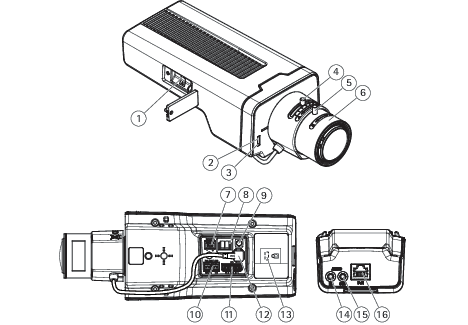
- microSD card slot
- Status LED
- Built-in microphone
- Zoom puller
- Lock screw for focus ring
- Focus ring
- Power connector (DC)
- T92G20 connector
- Control button
- RS485/422 connector
- I/O connector
- i-CS connector (compatible with P-iris and DC-iris)
- Security slot
- Audio in (analogue/digital)
- Audio out
- Network connector (PoE)
LED indicators
- The Status LED can be configured to flash while an event is active.
| Status LED | Indication |
| Unlit | Connection and normal operation. |
| Green | Shows steady green for 10 seconds for normal operation after startup completed. |
| Amber | Steady during startup. Flashes during device software upgrade or reset to factory default. |
| Amber/Red | Flashes amber/red if network connection is unavailable or lost. |
| Red | Device software upgrade failure. |
Status LED behavior for focus assistant
Only valid for optional P-iris, DC-iris or manual iris lenses.
The status LED flashes when the Focus Assistant is active.
| Color | Indication |
|---|---|
| Red | The image is out of focus. Adjust the lens. |
| Amber | The image is close to focus. The lens needs fine tuning. |
| Green | The image is in focus. |
SD card slot
- Risk of damage to SD card. Don’t use sharp tools, metal objects, or excessive force when inserting or removing the SD card. Use your fingers to insert and remove the card.
- Risk of data loss and corrupted recordings. Unmount the SD card from the device’s web interface before removing it. Don’t remove the SD card while the product is running.
This device supports microSD/microSDHC/microSDXC cards.
For SD card recommendations, see axis.com.


 microSD, microSDHC, and microSDXC Logos are trademarks of SD-3C LLC. microSD, microSDHC, microSDXC are trademarks or registered trademarks of SD-3C, LLC in the United States, other countries or both.
Buttons
Control button
- The control button is used for:
Enabling the Focus Assistant. Press and very quickly release the Control button.
Resetting the product to factory default settings. See Reset to factory default settings.
Connectors
Network connector
RJ45 Ethernet connector with Power over Ethernet (PoE).
Audio connector
Audio in – 3.5 mm input for a mono microphone, or a line-in mono signal (left channel is used from a stereo signal).
Audio out – 3.5 mm output for audio (line level) that can be connected to a public address (PA) system or an active speaker with a built-in amplifier. A stereo connector must be used for audio out.
Audio input
| 1 Tip | 2 Ring | 3 Sleeve |
Unbalanced microphone (with or without electret power) or line-in | Electret power if selected | Ground |
Audio output
| 1 Tip | 2 Ring | 3 Sleeve |
Channel 1, unbalanced line, mono | Channel 1, unbalanced line, mono | Ground |
I/O connector
Use the I/O connector with external devices in combination with, for example, motion detection, event triggering, and alarm notifications. In addition to the 0 VDC reference point and power (12 V DC output), the I/O connector provides the interface to:
- Digital input
- For connecting devices that can toggle between an open and closed circuit, for example PIR sensors, door/window contacts, and glass break detectors.
- Supervised input
- Enables possibility to detect tampering on a digital input.
- Digital output
- For connecting external devices such as relays and LEDs. Connected devices can be activated by the VAPIX® Application Programming Interface, through an event or from the device’s web interface.

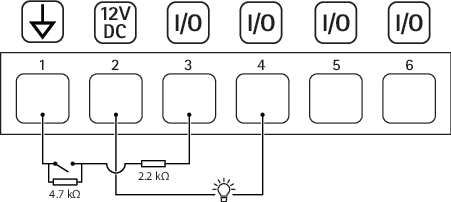
- DC ground
- DC output 12 V, max 50 mA
- Supervised input port 1
- Digital output port 1
- Supervised input port 2
- Digital output port 2
Power connector
2-pin terminal block for DC power input. Use a Safety Extra Low Voltage (SELV) compliant limited power source (LPS) with either a rated output power limited to ≤100 W or a rated output current limited to ≤5 A.
RS485/RS422 connector
Two 2-pin terminal blocks for RS485/RS422 serial interface.
The serial port can be configured to support:
Two-wire RS485 half duplex
Four-wire RS485 full duplex
Two-wire RS422 simplex
Four-wire RS422 full duplex point to point communication
Function | Notes |
RS485/RS422 TX(A) | TX pair for RS422 and 4-wire RS485 |
RS485/RS422 TX(B) | |
RS485A alt RS485/422 RX(A) | RX pair for all modes (combined RX/TX for 2-wire RS485) |
RS485B alt RS485/422 RX(B) |
T92G20 connector
Use this connector when you mount the camera in an AXIS T92G20 Outdoor Housing. The connector supplies power to the heater and the IR illumination in the housing.

Troubleshooting
Reset to factory default settings
Reset to factory default should be used with caution. A reset to factory default resets all settings, including the IP address, to the factory default values.
To reset the product to the factory default settings:
Disconnect power from the product.
Press and hold the control button while reconnecting power. See Product overview.
Keep the control button pressed for 15–30 seconds until the status LED indicator flashes amber.
Release the control button. The process is complete when the status LED indicator turns green. If no DHCP server is available on the network, the device IP address will default to one of the following:
Devices with AXIS OS 12.0 and later: Obtained from the link-local address subnet (169.254.0.0/16)
Devices with AXIS OS 11.11 and earlier: 192.168.0.90/24
Use the installation and management software tools to assign an IP address, set the password, and access the device.
The installation and management software tools are available from the support pages on axis.com/support.
You can also reset parameters to factory default through the device’s web interface. Go to Maintenance > Factory default and click Default.
AXIS OS options
Axis offers device software management according to either the active track or the long-term support (LTS) tracks. Being on the active track means continuously getting access to all the latest product features, while the LTS tracks provide a fixed platform with periodic releases focused mainly on bug fixes and security updates.
Using AXIS OS from the active track is recommended if you want to access the newest features, or if you use Axis end-to-end system offerings. The LTS tracks are recommended if you use third-party integrations, which are not continuously validated against the latest active track. With LTS, the products can maintain cybersecurity without introducing any significant functional changes or affecting any existing integrations. For more detailed information about Axis device software strategy, go to axis.com/support/device-software.
Check the current AXIS OS version
AXIS OS determines the functionality of our devices. When you troubleshoot a problem, we recommend that you to start by checking the current AXIS OS version. The latest version might contain a correction that fixes your particular problem.
To check the current AXIS OS version:
Go to the device’s web interface > Status.
Under Device info, see the AXIS OS version.
Upgrade AXIS OS
- When you upgrade the device software, your preconfigured and customized settings are saved. Axis Communications AB can't guarantee that the settings are saved, even if the features are available in the new AXIS OS version.
- Starting from AXIS OS 12.6, you must install every LTS version between your device’s current version and the target version. For example, if the currently installed device software version is AXIS OS 11.2, you have to install the LTS version AXIS OS 11.11 before you can upgrade the device to AXIS OS 12.6. For more information, see AXIS OS Lifecycle guide: Upgrade path.
- Make sure the device remains connected to the power source throughout the upgrade process.
- When you upgrade the device with the latest AXIS OS version in the active track, the product receives the latest functionality available. Always read the upgrade instructions and release notes available with each new release before you upgrade. To find the latest AXIS OS version and the release notes, go to axis.com/support/device-software.
Download the AXIS OS file to your computer, available free of charge at axis.com/support/device-software.
Log in to the device as an administrator.
Go to Maintenance > AXIS OS upgrade and click Upgrade.
- When the upgrade has finished, the product restarts automatically.
You can use AXIS Device Manager to upgrade multiple devices at the same time. Find out more at axis.com/products/axis-device-manager.
Technical problems and possible solutions
Problems upgrading AXIS OS
AXIS OS upgrade failed If the upgrade fails, the device reloads the previous version. The most common reason is that the wrong AXIS OS file has been uploaded. Check that the name of the AXIS OS file corresponds to your device and try again. |
Problems after AXIS OS upgrade If you experience problems after the upgrade, roll back to the previously installed version from the Maintenance page. |
Problems setting the IP address
Can’t set the IP address
|
Problems accessing the device
Can’t log in when accessing the device from a browser When HTTPS is enabled, make sure that you use the correct protocol (HTTP or HTTPS) when you try to log in. You might need to manually type If you’ve lost the password for the root account, you must reset the device to the factory default settings. For instructions, see Reset to factory default settings. |
The IP address has been changed by DHCP IP addresses obtained from a DHCP server are dynamic and could change. If the IP address has been changed, use AXIS IP Utility or AXIS Device Manager to locate the device on the network. Identify the device using its model or serial number, or by the DNS name (if the name has been configured). If required, you can assign a static IP address manually. For instructions, go to axis.com/support. |
Certificate error when using IEEE 802.1X For authentication to work properly, the date and time settings in the Axis device must be synchronized with an NTP server. Go to System > Date and time. |
The browser isn’t supported For a list of recommended browsers, see Browser support. |
Can’t access the device externally To access the device externally, we recommend you to use one of the following applications for Windows®:
For instructions and download, go to axis.com/vms. |
Problems with streaming
Multicast H.264 only accessible by local clients Check if your router supports multicasting, or if you need to configure the router settings between the client and the device. You might need to increase the TTL (Time To Live) value. |
No multicast H.264 displayed in the client Check with your network administrator that the multicast addresses used by the Axis device are valid for your network. Check with your network administrator to see if there is a firewall that prevents viewing. |
Poor rendering of H.264 images Ensure that your graphics card uses the latest driver. You can usually download the latest drivers from the manufacturer’s website. |
Color saturation is different in H.264 and Motion JPEG Modify the settings for your graphics adapter. Check the adapter’s documentation for more information. |
Lower frame rate than expected
|
Can't select H.265 encoding in live view Web browsers don’t support H.265 decoding. Use a video management system or application that supports H.265 decoding. |
Problems with MQTT
Can’t connect over port 8883 with MQTT over SSL The firewall blocks traffic that uses port 8883 since it’s regarded insecure. In some cases the server/broker might not provide a specific port for MQTT communication. It might still be possible to use MQTT over a port normally used for HTTP/HTTPS traffic.
|
If you can’t find what you’re looking for here, try the troubleshooting section at axis.com/support.
Performance considerations
When you set up your system, it’s important to consider how different settings and situations affect performance. Some factors affect bandwidth (bitrate), others affect frame rate, and some affect both.
The most important factors to consider:
High image resolution or lower compression levels result in images containing more data which in turn affects the bandwidth.
Rotating the image in the GUI can increase the product's CPU load.
Access by large numbers of Motion JPEG clients or unicast H.264/H.265/AV1 clients affects the bandwidth.
Simultaneous viewing of different streams (resolution, compression) by different clients affects both frame rate and bandwidth.
Use identical streams wherever possible to maintain a high frame rate. Stream profiles can be used to ensure that streams are identical.
Accessing video streams with different codecs simultaneously affects both frame rate and bandwidth. For optimal performance, use streams with the same codec.
Heavy usage of event settings affects the product’s CPU load which in turn affects the frame rate.
Using HTTPS may reduce frame rate, in particular if streaming Motion JPEG.
Heavy network utilization due to poor infrastructure affects the bandwidth.
Viewing on poorly performing client computers lowers perceived performance and affects frame rate.
Running multiple AXIS Camera Application Platform (ACAP) applications simultaneously may affect the frame rate and the general performance.
Contact support
If you need more help, go to axis.com/support.
Cybersecurity
Cybersecurity supports a successful product lifecycle with minimized risks. You can find in-depth information and documentation about our cybersecurity approach at axis.com/about-axis/cybersecurity. Follow the cybersecurity guidelines below to receive product security notifications from Axis and to configure your product for a secure lifecycle and decommissioning.
At Axis Trust Center, you can find information about how Axis implements security compliance, transparency, data protection, and privacy.
Vulnerability management
Axis is a Common Vulnerability and Exposures (CVE) Numbering Authority (CNA). To minimize your risk of exposure, we follow industry standards when identifying and resolving vulnerabilities in our devices, software, and services. Refer to axis.com/vulnerability-management for information about our vulnerability management policy or to report a vulnerability.
Security notifications
Subscribe to Axis security notification emails at axis.com/security-notification-service. We will send you information about vulnerabilities, corresponding security advisories, and other security-related matters for your Axis product.
Secure product lifecycle
Axis minimizes risks throughout the lifetime of our products through secure lifecycle management. Use our hardening guides at help.axis.com to more securely configure and operate your Axis products and to find information about:
- Secure first-use
- Axis products are pre-configured with high default protection to allow for secure initialization and encrypted communication from the very start.
- Intended use and common configuration mistakes
- Our guides provide information about the intended usage of Axis products, including common security-relevant misuse and configuration mistakes that should be avoided.
- Managing vulnerabilities and supply chain transparency
- A Software Bill of Material (SBOM) is published with every software release on axis.com to disclose vulnerabilities and improve supply chain transparency.
- Decommissioning and the secure erasure of data
- To securely decommission a product when it reaches the end of its lifecycle, reset it to factory default settings. This erases your configurations, stored data, and sensitive information.