
AXIS License Plate Verifier
About the application
When installed on a compatible Axis camera, AXIS License Plate Verifier enables vehicles to access areas such as parking lots. The application reads the license plate captured by the camera and verifies it against an allowlist or blocklist stored in the camera.
Typical scenarios for AXIS License Plate Verifier:
Requirements
The application can be installed in compatible Axis network video devices that support AXIS Camera Application Platform. A complete list of compatible devices and firmware versions is available at axis.com/products/axis-license-plate-verifier/support-and-documentation
Find the device on the network
For more information about how to find and assign IP addresses, go to How to assign an IP address and access your device.
Browser support
You can use the device with the following browsers:
ChromeTM | EdgeTM | Firefox® | Safari® | |
Windows® | ✓ | ✓ | * | * |
macOS® | ✓ | ✓ | * | * |
Linux® | ✓ | ✓ | * | * |
Other operating systems | * | * | * | * |
✓: Recommended
*: Supported with limitations
Access the device
Open a browser and enter the IP address or host name of the Axis device.
If you do not know the IP address, use AXIS IP Utility or AXIS Device Manager to find the device on the network.
Enter the username and password. If you access the device for the first time, you must set the root password. See Set a new password for the root account.
The live view page opens in your browser.
Set a new password for the root account
The default administrator username is root. If the password for root is lost, reset the device to factory default settings. See
Type a password. Follow the instructions about secure passwords. See Secure passwords.
Retype the password to confirm the spelling.
Click Create login. The password has now been configured.
Secure passwords
Use HTTPS (which is enabled by default) to set your password or other sensitive configurations over the network. HTTPS enables secure and encrypted network connections, thereby protecting sensitive data, such as passwords.
The device password is the primary protection for your data and services. Axis devices do not impose a password policy as they may be used in various types of installations.
To protect your data we strongly recommend that you:
Use a password with at least 8 characters, preferably created by a password generator.
Don’t expose the password.
Change the password at a recurring interval, at least once a year.
Get started
Basic setup
- These setup instructions are valid for cameras that are not sold as a kit with AXIS License Plate Verifier
These setup instructions are valid for all scenarios:
Adjust the camera settings
To access the camera settings, go to Find the device on the network.
Place a vehicle in the view area.
To make sure the license plate is big enough for the application to detect it, go to System > Orientation and select the pixel counter. Check that the width of the license plate equals at least 130 pixels for license plates with one row and at least 70 pixels for license plates with two rows.
Install the application
To install the application on the device, you need administrator rights.
Go to the device’s webpage.
Go to Settings > Apps.
Click Add to upload the application file (.eap) to the camera.
- To activate the license, you need a license key that is generated by the license code and the Axis device serial number. If you don’t have a license key on the computer, do the following:
Go to axis.com/support/license-key-registration#/registration
Enter the serial number and the license code.
Save the license key file on the computer. Browse to select the file and then click Activate.
Access the application settings
In the camera’s web interface, go to Apps, start the application and click Open.
Camera mounting recommendations
When you select the mounting location, remember that direct sunlight can distort the image, for example, during sunrise and sunset.
The mounting height for a camera in a Access control scenario should be half of the distance of that between the vehicle and the camera.
The mounting height for camera in a Free flow (slow traffic license plate recognition) scenario should be less than half of the distance of that between the vehicle and the camera.
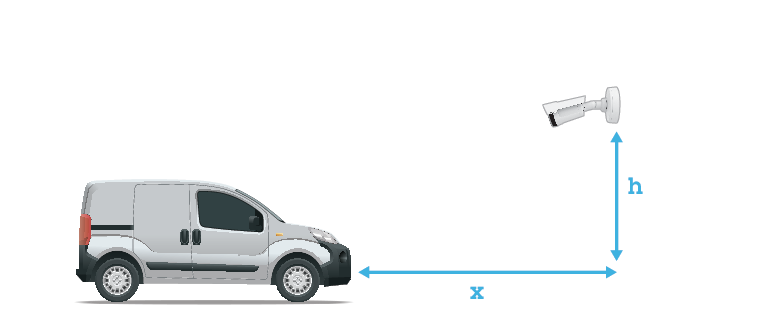
- Access control capture distance: 2–7 m (6.6–23 ft). This example is based on the AXIS P3265–LVE-3 License Plate Verifier kit.
Capture distance: (C) Mounting height (A) 2.0 m (6.6 ft) 1.0 m (3.3 ft) 3.0 m (9.8 ft) 1.5 m (4.9 ft) 4.0 m (13 ft) 2.0 m (6.6 ft) 5.0 m (16 ft) 2.5 m (8.2 ft) 7.0 m (23 ft) 3.5 m (11 ft) - Free flow capture distance: 7–20m (23–65 ft). This example is based on the AXIS P1465–LE-3 License Plate Verifier kit.
Capture distance (C) Mounting height (A) 7.0 m (23 ft) 3.0 m (9.8 ft) 10.0 m (33 ft) 4.0 m (13 ft) 15.0 m (49 ft) 6.0 m (19.5 ft) 20.0 m (65 ft) 10.0 m (33 ft) The camera’s mounting angle should not be larger than 30° in any direction.
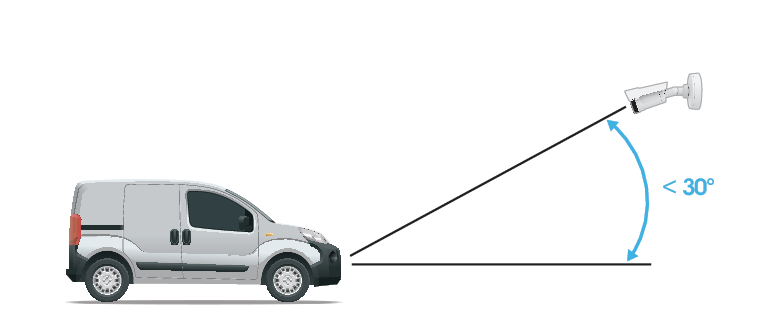
Mounting angle from the side. 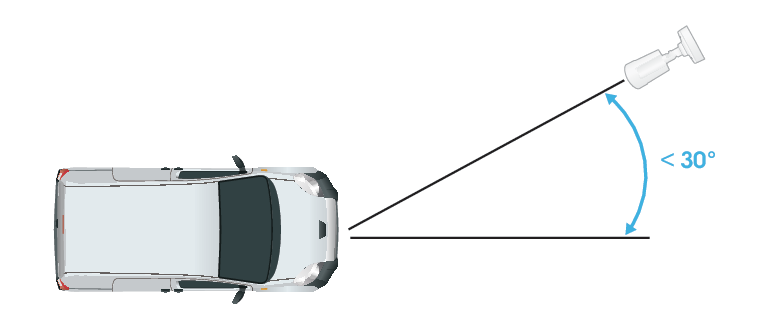
Mounting angle from above. The image of the license plate should not tilt more than 5° horizontally. If the image is tilted more than 5°, we recommended that you adjust the camera so that the license plate is displayed horizontally in the live stream.
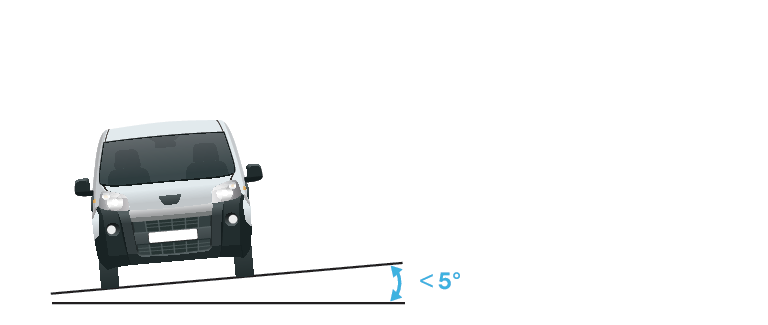
Roll angle.
Setup assistant
When you first run the application, set up Free flow or Access control using the setup assistant. If you want to make changes later on, go to Settings > Maintenance and under Setup assistant press Start.
Free flow
In Free flow, the application can detect and read license plates in slow speed traffic on larger access roads, city centers and enclosed areas like campuses, ports or airports. This allows for LPR-forensic search and LPR triggered events in a VMS.
Select Free flow and click Next.
Select the image rotation that corresponds to how your camera is mounted.
Select the number of areas of interest. Note that one area can detect plates in both directions.
Select the region where the camera is located.
Select capture type.
License plate crop saves only the license plate.
Vehicle crop saves the entire captured vehicle.
Frame downsized 480x270 saves the entire image and reduces the resolution to 480x270.
Full frame saves the entire image at full resolution.
Drag the anchor points to adjust the area of interest. See Adjust the area of interest.
Adjust the direction of the area of interest. Click the arrow and rotate to set the direction. The direction determines how the application registers vehicles entering or exiting the area.
Click Next
In the Protocol drop-down list, select one of the following protocols:
TCP
HTTP POST
In the Server URL field, type the server address and port in the following format:
127.0.0.1:8080In the Device ID field, type the name of the device or leave as is.
Under Event types, select one or more of the following options:
New means the first detection of a license plate.
Update is either a correction of a character on a previously detected license plate, or when a a direction is detected as the plate moves and is tracked across the image.
Lost is the last tracked event of the license plate before it exits the image. It also contains the direction of the license plate.
To turn on the feature, select Send event data to server.
To reduce bandwidth when using HTTP POST, you can select Do not to send images through HTTP POST.
Click Next.
If you already have a list of registered plates, choose to import as either a blocklist or allowlist.
Click Finish.
Access control
Use the setup wizard for quick and easy configuration. You can choose to Skip to leave the guide at any time.
Select Access control and click Next.
Select the type of access control to use:
Internal I/O if you want keep list management in the camera. See Open a barrier for known vehicles using the camera's I/O.
Controller if you want to connect a Door controller. See Connect to a door controller.
Relay if you want to connect to a relay module. See Open a barrier for known vehicles using a relay module.
In the Barrier mode drop-down list, under Open from lists, select Allowlist.
In the Vehicle direction drop-down list, select out.
In the ROI drop-down-list, select the area of interest you would like to use, or if you would like to use all.
Click Next.
On the Image settings page:
Select the number of areas of interest.
Select the region where the camera is located.
Select capture type. See Adjust the image capture settings.
Drag the anchor points to adjust the area of interest. See Adjust the area of interest.
Adjust the direction of the area of interest. The direction determines how the application registers vehicles entering or exiting the area.
Click Next
On the Event data page:
For detailed settings see: Push event information to third-party software.
In the Protocol drop-down list, select one of the following protocols:
TCP
HTTP POST
In the Server URL field, type the server address and port in the following format:
127.0.0.1:8080.In the Device ID field, type the name of the device or leave as is.
Under Event types, select one or more of the following options:
New means the first detection of a license plate.
Update is either a correction of a character on a previously detected license plate, or when a a direction is detected as the plate moves and is tracked across the image.
Lost is the last tracked event of the license plate before it exits the image. It also contains the direction of the license plate.
To turn on the feature, select Send event data to server.
To reduce bandwidth when using HTTP POST, you can select Do not to send images through HTTP POST.
Click Next
- On the Import list from a .csv file page:
If you already have a list of registered plates, choose to import as either a blocklist or allowlist.
Click Finish.
Adjust the area of interest
The area of interest is the area in the live view where the application looks for license plates. For optimal performance, keep the area of interest as small as possible. To adjust the area of interest, do the following:
Go to Settings.
Click Image.
Click on 1:1 to zoom in where you want monitor traffic or manage access control.
To improve verification and captured images, click on AF.
To have the camera automatically focus on the vehicles, click AF. To set the focus manually, adjust it with the slider.
Click on Area of interest to see it displayed in the view area.
To move the area of interest, click anywhere in the area to select it and drag it to where the license plates are most visible. Make sure the region of interest stays in position after you have saved the settings.
To adjust the area of interest, click anywhere in the area to select it and drag the anchor points highlighted in blue.
To reset the area of interest, click on the reset button on the lower left corner next to the number icon.
To add anchor points, click the on one of the dark anchor points. The anchor point will turn yellow, showing it can be manipulated. New dark points are automatically added next to the yellow anchor point. The maximum amount of yellow anchor points is eight.
Click anywhere outside the area of interest to save your changes.
To get the correct direction feedback in the Event log, you need to turn the arrow to match the driving direction.
Click the arrow icon.
Select the anchor point and rotate the arrow so it aligns with the driving direction.
Click outside the area of interest to save the changes.
- Note that one area can detect plates in both directions. The direction feedback shows up in the Direction column.
To check if your area of interest is large enough for the best results, use the pixel counter.
To show the pixel counter, click on the calculator icon.
To adjust the full size pixel counter area, drag the lower right corner of the area highlighted in yellow.
To move the pixel counter area, click anywhere in the area and drag it where you want.
To add a second area of interest, click on + next to 1.
If you are using a standalone camera, you can have the app set the recommended settings for license plate recognition.
Click on the magic wand icon and the settings will be optimized for license plate recognition.
Click on the menu button next to the magic wand to see the set values.
Select region
Go to Settings > Recognition.
In the Region drop-down list, select your region.
Adjust the image capture settings
Go to Settings > Image.
To change the resolution of captured images, go to Image resolution
To change the rotation of the captured image, go to Rotation
Set up event storage
An event consists of the captured image, the license plate, the area of interest number, vehicle direction, access, and the date and time.
This example use case explains how to store events of allowlisted license plate numbers for 30 days.
- Requirements:
Camera physically installed and connected to the network.
AXIS License Plate Verifier up and running on the camera.
Internal storage or an SD card installed in the camera.
Go to Settings > Storage.
Under Retain events, select Allowlisted.
Under Retention period, select 30 days.
To change how you save your captured images, go to Save full frame:
License plate crop saves only the license plate.
Vehicle crop saves the entire captured vehicle.
Frame downsized 480x270 saves the entire image and reduces the resolution to 480x270.
Full frame saves the entire image at full resolution.
- Note
To detect an inserted SD card when the app is running, you need to restart the app. If an SD card is installed in the camera, the app will automatically choose the SD card as the default storage.
AXIS License Plate Verifier uses the cameras internal memory to save up to 1,000 events, using license plate crops as the frame. If you use larger frames, it will vary the amount of events you can save.
An SD card can save up to 100,000 events using any type of frame.
Manage lists
Add detected license plate to list
A license plate can be added directly to a list after being detected by the application.
Click on Home.
Go to Live.
Click on the arrow icon on the registered plate in the list.
Click on Append plate to list.
Select the list you would like to add the license plate in the dialog.
Click Append.
Make sure the symbols <,> and & aren’t used in either the license plate or description.
Add descriptions to license plates
To add a description to a license plate in the list:
Go to List management.
Select the license plate and click
 then select Edit in the drop-down menu.
Type the relevant information in the Description field.
Click Save.
Make sure the symbols <,> and & aren’t used in either license plates or descriptions.
Customize list names
You can change the name of any of the lists to fit your specific use case.
Go to List management.
Click
next to the list you want to change.Select Edit.
Type the name of the list.
Click Submit.
The new list name will be updated in any existing configurations.
Import allowlisted license plate numbers
You can import allowlisted license plate numbers from a .csv file on the computer. In addition to the license plate number, you can also add comments for each license plate number in the .csv file.
The structure of the .csv file must look like this: license plate,date,description
Example
Only license plate:
AXIS123License plate + description:
AXIS123,,John SmithLicense plate + date + description:
AXIS123,2022-06-08,John Smith
Make sure the symbols <,> and & aren’t used in either license plates or descriptions.
Go to List management
Click on
next to Allowlist and select Import in the drop-down menu.Browse to select a .csv file on the computer.
Click OK.
Check that the imported license plate numbers appear in the Allowlist.
Schedule lists
Lists can be scheduled to only be active during certain times during certain days of the week. To schedule a list:
Go to List management.
Click
next to the list you want to change.Select Schedule in the drop-down menu.
Select the start and end time, and the day when the list should be active.
Click the button next to Enabled.
Click Save.
Additional settings
Configure text overlay
A text overlay shows the following event information in the live view: weekday, month, time, year, license plate number.
Go to Settings > Image.
Activate Text overlay.
Select either Timestamp and license plate or License plate only.
Set Overlay duration to a value between 1 and 9 seconds.
Check that the overlay appears in the live view.
Detect license plates in low-light conditions
Each detection gets a score by the algorithm, this is called the confidence threshold. Detections that have a lower score than the selected level will not show up in the list of events.
For scenes with low lighting you can set a lower confidence threshold, which will allow for detection of more plates.
Go to Settings > Recognition.
Adjust the slider under Confidence threshold.
Check that the algorithm detects the license plates as expected.
Allow fewer characters on license plates
The application has a default minimum number of characters for a license plate to be detected. The default minimum number of characters is five. You can configure the application to detect license plates with fewer characters.
Go to Settings > Recognition.
Under Number of characters, adjust the slider to set the minimum number of characters you want to allow.
Check that the application detects license plates as expected.
Allow only exact matches of license plates
The matching algorithm automatically allows a deviation of one character when matching the detected license plate against the allowlist or blocklist. However, some scenarios need an exact match of all characters of the license plate.
Go to List management.
Click to activate Strict matching.
Check that the application matches the license plates as expected.
Allow more than one character deviation when matching license plates
The matching algorithm automatically allows a deviation of one character when matching the detected license plate against the allowlist or blocklist. However, you can allow more than one character deviation.
Go to Settings > Recognition.
Under Allowed character deviation, select the number of characters that are allowed to be different.
Check that the application matches the license plates as expected.
Give limited access to operators
Operators can be given a limited access to the app using an URL. This way they only have access to the Event log and List management. The URL can be found under Settings > User rights.
Set up secure connection
To protect communication and data between devices, for example between the camera and the door controller, set up a secure connection with HTTPS using certificates.
Go to Settings > Security.
Under HTTPS, select either Self-signed or CA-signed.
Find out more about HTTPS and how to use it at help.axis.com/axis-os-hardening-guide.
Backup and restore app settings
You can backup and restore settings made in the app related to image capture, security, detection and integration. If something should go wrong, you can now restore the settings you have backed up.
- To backup app settings:
Go to Settings > Maintenance.
Click Download backup configuration.
- A JSON file will be downloaded to you downloads folder.
- To restore app settings:
Go to Settings > Maintenance.
Click Restore configuration.
- Select the JSON file containing the backup.
The setting are restored automatically.
Clear all events
After you set up the app, it can be a good idea to clear the records of any images or captured plates from the setup process.
To clear all images and plates from the database:
- Go to Settings > Maintenance.
Click Clear all recognition results.
Click Yes.
Use virtual ports to trigger actions
Virtual ports can be used together with access control to trigger any kind of action. This example explains how to set up AXIS License Plate Verifier together with the camera’s I/O port to display a text overlay using a virtual port.
- Requirements:
Camera physically installed and connected to the network.
AXIS License Plate Verifier up and running on the camera.
Cables connected between the barrier and the camera’s I/O port.
Basic setup done. See Basic setup.
Go to the application’s webpage and select the Settings tab.
Go to Access control.
Under Access control, select Internal I/O.
Select the I/O output #.
Select a port in the Virtual port drop-down list.
Under Barrier mode, select Open to all.
Under Vehicle direction, select Any.
Select the Area of interest you would like to use.
In the camera’s webpage, go to System > Events.
Click Add rule.
Under Condition select Virtual input is active and the port number you have selected.
Under Action, select Use overlay text.
Select Video channels.
Type the text you want displayed.
Add the duration of the text.
Click Save.
Go to Video > Overlays.
Go to Overlays.
Select Text in the drop-down menu and click +.
Type
#Dor select the modifier in the Modifiers drop-down list.Check that the text overlay is displayed when a vehicle enters the region of interest in the live view.
Link preset positions to an areas of interest
You can link a preset position of your PTZ camera to an area of interest. That way, license plate detection and reading will only take place when the PTZ camera are in that position. You can link two preset positions to the areas of interest.
This feature is available in AXIS License Plate Verifier 2.16.3 and later versions. To see which PTZ cameras are compatible, go to the list of compatible products on the product page: AXIS License Plate Verifier | Axis Communications
If no preset position is linked to an area of interest, plate detection and reading will take place in any position or while the camera is moving, which can result in false positives and missed readings.
To link preset positions to areas of interest:
Go to the camera’s web interface.
Go to PTZ > Preset positions.
Direct the PTZ camera to an area in the scene you want to focus on.
Click Create preset position.
Name the preset position and click Save.
- Repeat the steps above if you’d like to create an additional preset position.
Go to AXIS License Plate Verifier.
Go to Settings > Image and click on Area of interest.
Go to PTZ preset for AoI 1.
Select the preset position you’ve created or one that’s already created from the drop-down menu.
To link one more preset position, go to Area of Interest and select 2 in the drop-down menu. You now have the option to configure PTZ preset for AoI 2.
Vehicle entry and exit scenario
In the scenario for vehicle entry and exit, the application reads the vehicle license plate captured by the camera and verifies the license plate against a list of authorized or unauthorized license plate numbers stored in the camera.
This scenario requires the application embedded in a camera with I/O support or a connected I/O relay module to open and close the barrier.
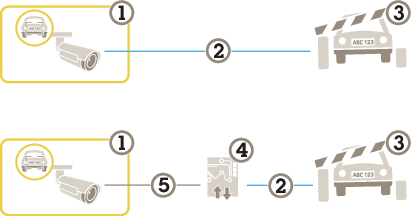
- Axis camera with AXIS License Plate Verifier
- I/O communication
- Barrier
- Axis I/O relay module
- IP communication
Open a barrier for known vehicles using a relay module
This example use case explains how to set up AXIS License Plate Verifier together with a relay module to open a barrier for a known vehicle driving through a specific region of interest (ROI) into, let’s say a parking area.
- Requirements:
Camera physically installed and connected to the network.
AXIS License Plate Verifier up and running on the camera.
Cables connected between the barrier and the relay module.
Basic setup done. See Basic setup.
Go to the camera’s webpage, select Settings and open AXIS License Plate Verifier.
Go to the relay module’s webpage and make sure the relay port is connected to the camera’s I/O port.
Copy the relay module’s IP address.
Go back to AXIS License Plate Verifier.
Go to the Settings>Access control
Select Relay.
Enter the following information:
the IP address for the relay module in format
192.168.0.0the username for the relay module
the password for the relay module
In the I/O output drop-down list, select the I/O port that is connected to the barrier.
Under Barrier mode, select Open from lists and then check Allowlist.
Under Vehicle direction, select In.
Under Area of interest, select the area of interest that covers the traffic lane.
To make sure the connection works, click Connect.
To activate the connection, click Turn on integration.
Go to the List management tab
Enter the license plate number in the Allowlist field.
Check that the application identifies the license plate number in the allowlist as a known vehicle and that the barrier opens as expected.
- Note
The physical input ports 1 to 8 on the relay module correspond to ports 1 to 8 in the drop-down list. However, the relay ports 1 to 8 on the relay module correspond to ports 9 to 16 in the drop-down list. This is valid even if the relay module only has 8 ports.
Open a barrier for known vehicles using the camera's I/O
This example explains how to set up AXIS License Plate Verifier together with the camera’s I/O port to open a barrier for a known vehicle entering, for example, a parking area.
- Requirements:
Camera physically installed and connected to the network.
AXIS License Plate Verifier up and running on the camera.
Cables connected between the barrier and the camera’s I/O port.
Basic setup done. See Basic setup.
Go to the application’s webpage and go to Home and add detected license plates to a list. See Add detected license plate to list
To edit the lists directly, go to List management .
Enter the authorized license plate numbers in the Allowlist field.
Go to Settings.
Under Access control , select Internal I/O.
Select the I/O output #.
Under Barrier mode, select Open from lists and then check Allowlist.
In the Vehicle direction drop-down list, select in.
Under Area of interest, select the area of interest you would like to use, or if you would like to use all.
Check that the application identifies the license plate number in the allowlist as a known vehicle and that the barrier opens as expected.
You can change the name of any of the lists to fit your specific use case.
Get notified about an unauthorized vehicle
This example explains how to set up the application so that an event that triggers a notification can be created in the camera.
Requirements:
Basic setup done. See Basic setup.
Go to List management.
Enter the license plate number in the Blocklist field.
Go to the camera’s webpage.
Go to Settings > Events and set up an action rule with the application as a condition and with a notification as an action.
Check that the application identifies the added license plate number as an unauthorized vehicle and that the action rule runs as expected.
Vehicle access control scenario
In the scenario for vehicle access control, the application can be connected to an Axis network door controller to configure access rules, create schedules for access times, and handle vehicle access not only for employees, but also, for example, visitors and suppliers.
For backup, use an access system involving a door controller and card reader. To set up the door controller and the card reader, see the user documentation at axis.com
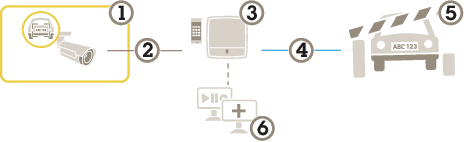
- Axis camera with AXIS License Plate Verifier
- IP communication
- Axis network door controller with card reader
- I/O communication
- Barrier
- Optional third-party software
Connect to a door controller
In this example we connect the camera to a network door controller which means the camera works as a sensor. The camera forwards the information to the controller which in turn analyzes the information and triggers the events.
These instructions are only valid for AXIS A1001 Door controller.
Make sure to refresh the web pages to get access to all parameters when switching between the AXIS License Plate Verifier and AXIS Entry Manager.
- Requirements:
Camera and door controller physically installed and connected to the network.
AXIS License Plate Verifier up and running on the camera.
Basic setup done. See Basic setup.
- Hardware configuration in AXIS Entry Manager
Go to AXIS Entry Manager and start a new hardware configuration under Setup.
In the hardware configuration, rename the network door controller to “Gate controller”.
Click Next.
In Configure locks connected to this controller, clear the Door monitor option.
Click Next.
In Configure readers connected to this controller, clear the Exit reader option.
Click Finish.
- Configuration in AXIS License Plate Verifier
Go the AXIS License Plate Verifier webpage.
Go to the Settings>Access control.
Select Controller.
Under Network settings, enter the following information:
the IP address for the controller in format
192.168.0.0the username for the controller
the password for the controller
Click Connect.
If the connection is successful, “Gatecontroller” shows up in the Network Door Controller name drop-down list. Select “Gatecontroller”.
In the Reader name drop-down list, select the reader connected to the door “Gatecontroller”, for example “Reader entrance”. These names can be changed in AXIS Entry Manager.
To activate the connection, click Activate integration.
Enter one of the user’s license plate number, or use the default, in the test field and click Test. Check that the test was successful.
- Configure users, groups, doors, and schedules in AXIS Entry Manager
Go to AXIS Entry Manager.
Go to Access Management.
Go to Doors > Add identification type.
In the Credentials needed drop-down list, select License plate only.
To set limits for when the identification type can be used, drag and drop a Schedule to the door.
Add users and, for each user, add the credential License plate.
Click Add credential again and enter the license plate information.
Click Add new group and enter the information.
To add users to a group, drag and drop Users to the user group.
To give users access, drag and drop the Door to the user group.
To limit the access time, drag and drop a Schedule to the user group.
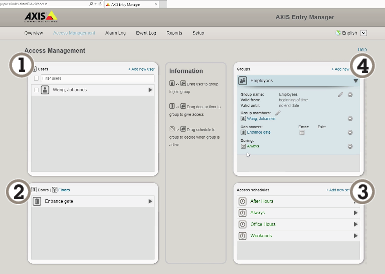
Overview of AXIS Entry Manager user interface. - Users
- Doors
- Schedules
- User groups
Connect to AXIS Secure Entry
This example describes connecting an Axis door controller in AXIS Camera Station and AXIS Secure Entry with AXIS Licence Plate Verifier.
These instructions only apply to the following devices: A1210, A1201-B, A1214, A1610, A1610-B, A1710-B and A1810-B.
- Requirements:
A camera and a door controller physically installed and connected to the network.
AXIS License Plate Verifier up and running on the camera.
AXIS Camera Station client version 5.49.449 and up.
Basic setup done. See Basic setup.
In AXIS Camera Station, see Add a reader.
In the AXIS License Plate Verifier app:
In the Settings menu, go to Access control and select Secure Entry.
Go to IP address and type the IP address of the door controller, available in the device list in AXIS Camera Station > Configuration > Other Devices.
- In AXIS Camera Station:
To add a Authentication key, go to AXIS Camera Station > Configuration > Encrypted communication.
Go to External Peripheral Authentication Key and click Show authentication key.
Click Copy key.
- In the AXIS License Plate Verifier app:
Go to Authentication key and paste the key.
Click Connect.
Select the vehicle direction.
Select the area of interest.
Select the Door controller name in the drop-down menu.
Select the Reader name in the drop-down menu.
Click Activate integration.
Enter one of the user’s license plate number, or use the default, in the test field and click Test. Check that the test was successful.
Search for specific events
Use the search feature to search for events using a number of criteria.
Go to the application’s webpage and select the Search page.
Select the date in the From and To calendar menus.
Click the AOI drop down menu to select which area of interest should be included in the search.
select Direction to filter by entry or exit.
Enter the license plate in the Plate field, if you want to search for a plate.
To find license plates that belong to a specific country, select a country in the Country drop-down list..
To filter out images based on the view of the vehicle, select Front or Rear in the Vehicle view drop-down list.
To filter the search results based on the make, model, type or color of the vehicle, select what you are looking for in the Vehicle details drop-down menus.
Click Apply filters to view the search results.
Integration
Use profiles to push events to multiple servers
With profiles, you can push an event to different servers using different protocols at the same time. To use profiles:
Go to Integration and the Push events page.
Select Profile 1.
Configure the rule. See Push event information to third-party software.
Test the rule.
Select a new profile tab to configure a new rule.
Push event information to third-party software
The application sends the event information in JSON format. For more information, log in using your MyAxis account, go to the AXIS VAPIX Library and select AXIS License Plate Verifier
With this feature you can integrate third-party software by pushing the event data through TCP or HTTP POST.
- Before you start:
The camera must be physically installed and connected to the network.
AXIS License Plate Verifier must up and running on the camera.
Go to Integration > Push events.
Select an empty profile
In the Protocol drop-down list, select HTTP POST.
In the Server URL field, type the server address and port in the following format:
127.0.0.1:8080Type the user name and password.
If you are using a proxy, turn the proxy on and type the hostname, username and password.
In the Device ID field, type the name of the device or leave as is.
Select which direction to trigger push events under Push conditions.
Under LPR Event types, select one or more of the following options:
New means the first detection of a license plate.
Update is either a correction of a character on a previously detected license plate, or when a a direction is detected as the plate moves and is tracked across the image.
Lost is the last tracked event of the license plate before it exits the image. It also contains the direction of the license plate.
Conditional pushes one event for one object when conditions are met.
To reduce bandwidth when using HTTP POST, you can select Do not to send images.
Enable Event buffer to buffer events if the server goes down, and send them when the server becomes available.
To include the license plate crop in addition to the image if you’ve chosen under Retention settings select Send two images.
To send the events in mulitpart format instead of base64, select Multipart.
Click Test to test the integration with a virtual license plate.
To turn on the feature, select Activate.
- Note
To push events using HTTP POST, you can use an authorization header instead of a user name and password, go to Auth-Header , and add a path to an authentication API.
Send images of license plates to a server
With this feature you can push images of the license plates to a server through FTP.
- Before you start:
The camera must be physically installed and connected to the network.
AXIS License Plate Verifier must up and running on the camera.
Go to Integration > Push events.
In the Protocol drop-down list, select FTP.
In the Server URL field, type the server address in the following format:
ftp://10.21.65.77/LPR.Type the username and password for the FTP server.
Select the path and name modifiers for the filenames.
In the Device ID field, type the name of the device. A folder with this name will be created for the images. Images are created using the following format: timestamp_area of interest_direction_carID_license plate text_country.jpg.
Select which direction to trigger push events under Push conditions.
Under Event types, select one or more of the following options:
New means the first detection of a license plate.
Update is either a correction of a character on a previously detected license plate, or when a a direction is detected as the plate moves and is tracked across the image.
Lost is the last tracked event of the license plate before it exits the image. It also contains the direction of the license plate.
Conditional pushes one event for one object when conditions are met.
- Note
Direction is only included in the filename when Lost or Update is selected.
Click Test to test the integration with a virtual license plate.
To turn on the feature, click Activate.
Note that the image varies depending on what type of capture mode you have selected, see Adjust the image capture settings.
If push events fail, the app will resend up to the first 100 failed events to the server.
When using FTP in push events to a Windows server, do not use %c for naming of images that gives you date and time. This is due to the fact that Windows does not accept the naming set by the function %c for date and time. Note that this is not an issue when using a Linux server.
Direct integration with 2N
This example describes direct integration with a 2N IP device.
- Set up an account in your 2N device:
Go to 2N IP Verso.
Go to Services > HTTP API > Account 1.
Select Enable account.
Select Camera access.
Select License plate recognition.
Copy the IP address.
- In the AXIS License Plate Verifier app:
Go to Integration > Direct integration.
Select 2N IP Device.
Add the IP address or URL to the 2N device.
Type your username and password.
Select Connection type.
Select what the Barrier is used for.
Click Enable integration.
Select the direction of the vehicles..
To turn on the feature, select Activate.
To check in the integration is working:
Go to 2N IP Verso.
Go to Status > Events.
Integrate with Genetec Security Center
This example describes setting up a direct integration with Genetec Security Center.
In Genetec Security Center:
Go to Overview.
Make sure that Database, Directory and License are online. If they’re not, run all Genetec and SQLEXPRESS services in Windows.
Go to Genetec Config Tool > Plugins.
Click Add an entity.
Go to Plugin and select LPR plugin.
Click Next.
Click Next.
Click Next.
Select the LPR plugin you’ve added and go to Data sources .
- Under ALPR reads API:
Check Enabled.
In Name, type: Plugin REST API.
In API path prefix, type: lpr.
In REST port, select 443.
In WebSDK host, type: localhost.
In WebSDK port, select 443.
Check Allow self signed certificates.
- Under Security Center events data source:
Check Enabled.
In Name, type Security Center Lpr Events.
In Processing frequency, select 5 sec in the drop-down menu.
Go to the Data sinks tab.
Click +.
In Type, select Database.
Select and configure the database:.
Check Enabled.
In Source, check Plugin REST API and Native ALPR Events.
In Name, type Reads DB.
In Include, check Reads, Hits and Images.
Go to the Resources tab.
Click Delete the database and then Create a database.
- Create an API user:
Go to Config Tool > User Management.
Click Add an entity.
Select User.
Type a username and password. Leave the other fields unchanged.
Select the added user and go to the Privileges tab.
Check to allow everything under Application privileges.
Check to allow Third-party ALPR reads API.
Click Apply.
In the AXIS License Plate Verifier app:
Go to Integration>Direct integration.
Select Genetec Security Center.
In URL/IP, type your address according to this template:
https://server-address/api/V1/lpr/lpringestion/reads.Type in your Genetec username and password.
Select Connection type.
To turn on the feature, select Activate.
Click Test to test the integration with a virtual license plate.
If you’ve chosen HTTPS, go to the Settings tab.
Under Security > HTTPS.
Select Self-signed, or CA-signed depending on the settings in Genetec Security Center.
In Genetec Security Center:
Go to Genetec Security desk.
Under Investigation, click Reads.
Go to the Reads tab.
Filter the result to your needs.
Click Generate report.
You can also read Genetec’s documentation on integrating third party ALPR plugins. You can do that here (requires registration).
Troubleshooting
| Unknown vehicles are marked as accepted |
If the application lets in vehicles with license plates that are not in the allowlist, one probable reason is that the comparison allows a deviation of one character. Go to Additional settings to set the characters allowed. |
| The connection between the application and controller or relay module doesn’t work | ||
Make sure the controller, or relay module, allows data traffic through HTTP. To find out how to change this setting, go to the user manual for the corresponding device. |
For users of AXIS Camera Station
Set up AXIS License Plate Verifier
When a device is configured with AXIS License Plate Verifier, it is considered as an external data source in the video management system. You can connect a view to the data source, search for the license plates that are captured by the device, and view the related image.
- It requires AXIS Camera Station 5.38 or later.
- AXIS License Plate Verifier requires a license.
Download and install the application on your device.
Configure the application. See AXIS License Plate Verifier user manual.
For an existing AXIS Camera Station installation, renew your server certificate that is used to communicate with the client. See Certificate renewal.
Turn on time synchronization to use AXIS Camera Station server as the NTP server. See Server settings.
Add the device to AXIS Camera Station. See Add devices.
When the first event is received, a data source is automatically added under Configuration > Devices > External data sources.
Connect the data source to a view. See External data sources.
Search for license plates that are captured by the device. See Data search.
Click
 to export the search results to a .txt file.
License plate verifier
On the License plate verifier page, you can view the status of AXIS License Plate Verifier on your cameras and group cameras for easier list management.
The Cameras tab contains a list of all connected devices with AXIS License Plate Verifier installed:
Camera: The camera’s name.
Version: Which version of AXIS License Plate Verifier is installed on the camera.
Status: The current status of AXIS License Plate Verifier.
Latest event: The time of the latest event captured by the camera.
Allowed: The number of license plates included in the camera’s ‘Allowed’ list.
Blocked: The number of license plates included in the camera’s ‘Blocked’ list.
Custom: The amount of license plates included in the camera’s ‘Custom’ list.
Group: Which group the camera belongs to.
The Groups tab lists all your camera groups and the cameras in each group. In this tab, you can:
Click New... to add a new group.
Click Delete to delete an existing group.
Rename a selected group in the Group name field
Click Add... to add a camera in the selected group.
Click Remove to remove a camera from a group.
You can create shared lists for grouped cameras. For more information, see License plate management.